 By
By 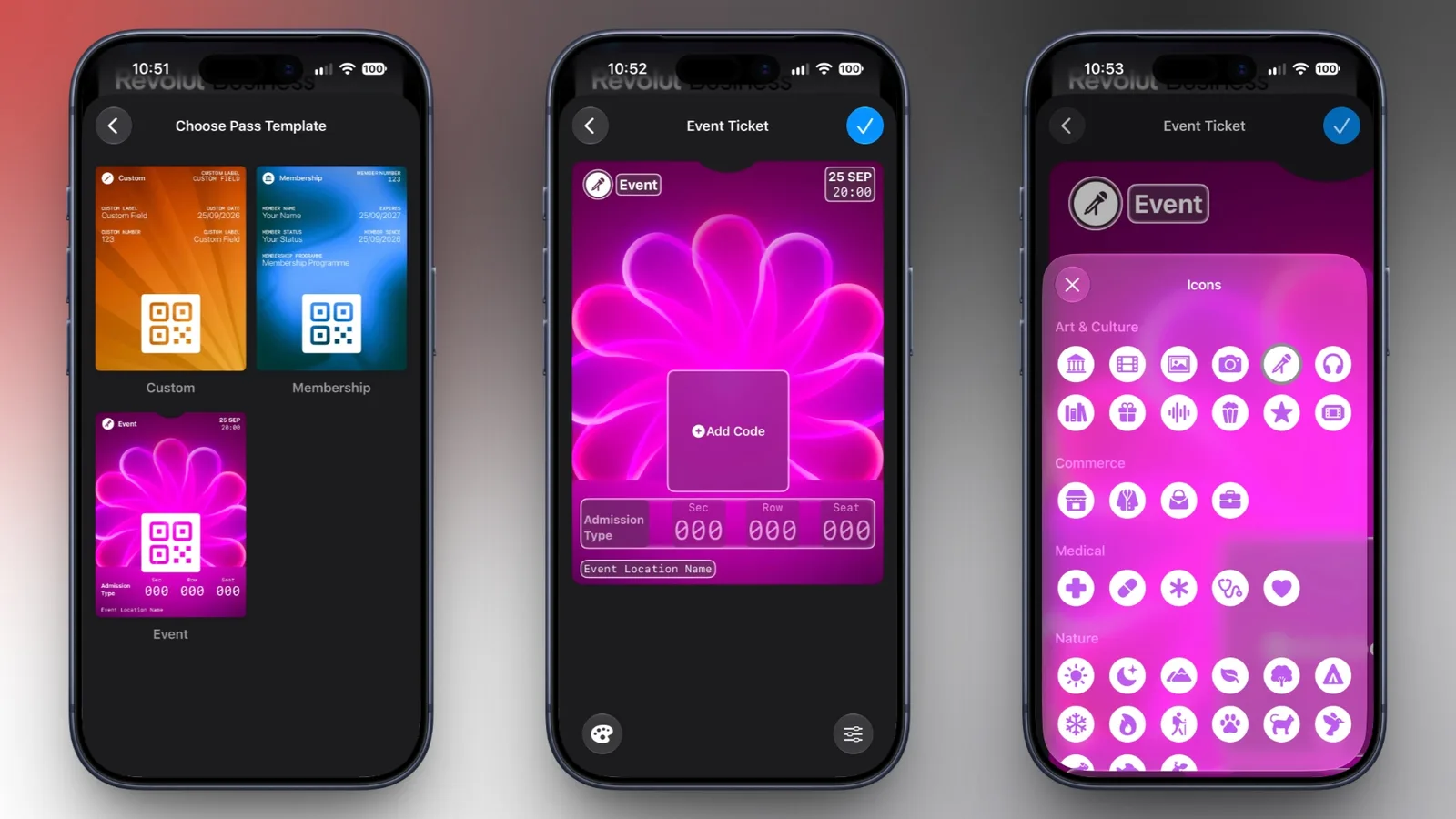
Apple is adding custom pass creation to the Wallet app in iOS 27, allowing iPhone users to digitize physical event tickets, gift cards, loyalty cards, membership cards, and other passes. The feature can scan an existing card with Visual Intelligence or let users build a pass manually.
This gives users a way to store cards in Wallet even when the issuer does not provide an official digital version. After a pass is created, it can be edited to change its appearance or adjust the information it contains.
How Visual Intelligence creates a Wallet pass
To create a pass automatically, open the Wallet app on an iPhone and tap the plus button at the top of the screen. Select Create a Pass, then tap Continue to use Visual Intelligence.
The iPhone will ask the user to photograph the physical pass. Visual Intelligence then identifies the card and matches it with a suitable template. Once the match is complete, tapping Edit Pass opens the customization tools.
Users can change the pass's background color or select an image from their Photos library. They can also add or remove individual fields before saving it with the blue checkmark at the top of the screen.
Manual pass creation and available templates
Wallet also supports manual creation for people who prefer to configure a pass themselves. The available templates include Membership, Event, and Custom.
Each template includes fields suited to its category. Depending on the type selected, users can add details such as a name, location, admission type, date, membership information, contact details, coupon codes, vehicle identification numbers, or insurance information.
After entering the relevant details, users scan the barcode or QR code printed on the physical card. That code becomes part of the newly created Wallet pass.
Wallet pass customization options
Apple includes 12 background colors for custom passes. There are also seven category-specific backgrounds designed for areas such as theater, music, sports, and movies.
The range of fields and visual options means the feature can handle more than event admission. A membership card, loyalty card, gift card, or other physical pass can be tailored with the information needed to identify and use it.
How to edit a custom pass later
Custom passes remain editable after they are added to Wallet. Select the pass, tap the three-dot button in the upper-right corner, and choose Edit Pass. From there, users can change the design or modify the fields included on the pass.
The feature is designed for situations where a physical card exists but no official Wallet pass is available. It does not require the card issuer to provide a separate digital pass, though users still need to keep the original card when it is required for verification or use.


